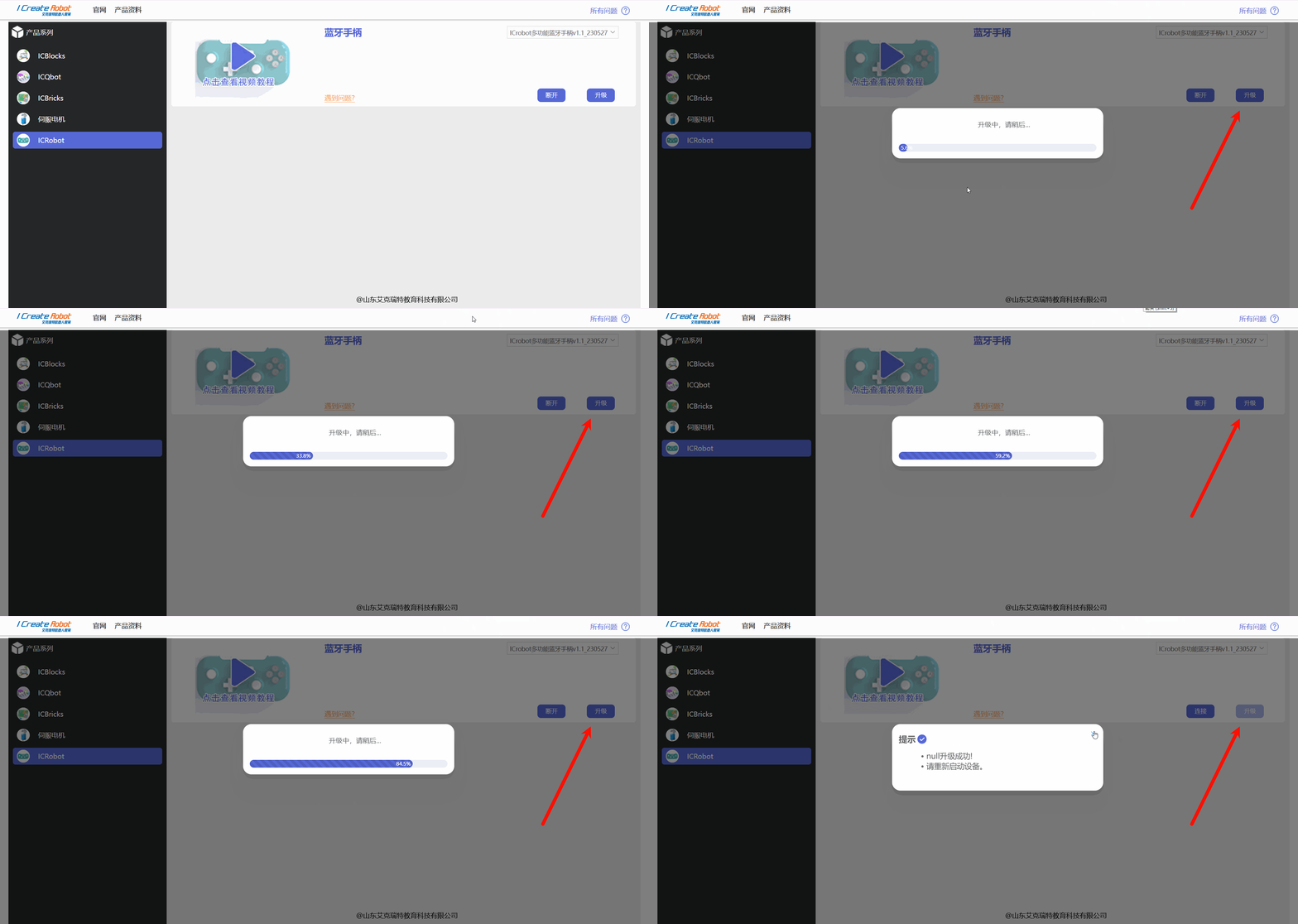
KIDZBot Multifunctional Bluetooth Controller Firmware Upgrade
Online Upgrade
Preparation
1.Software Preparation
Download and install the CH340 driver on your computer. Use the following links:
CH341SER
Windows Driver:

Linux Driver:

Mac Driver:

Android Driver:

2.Hardware Preparation
|
|
|---|---|
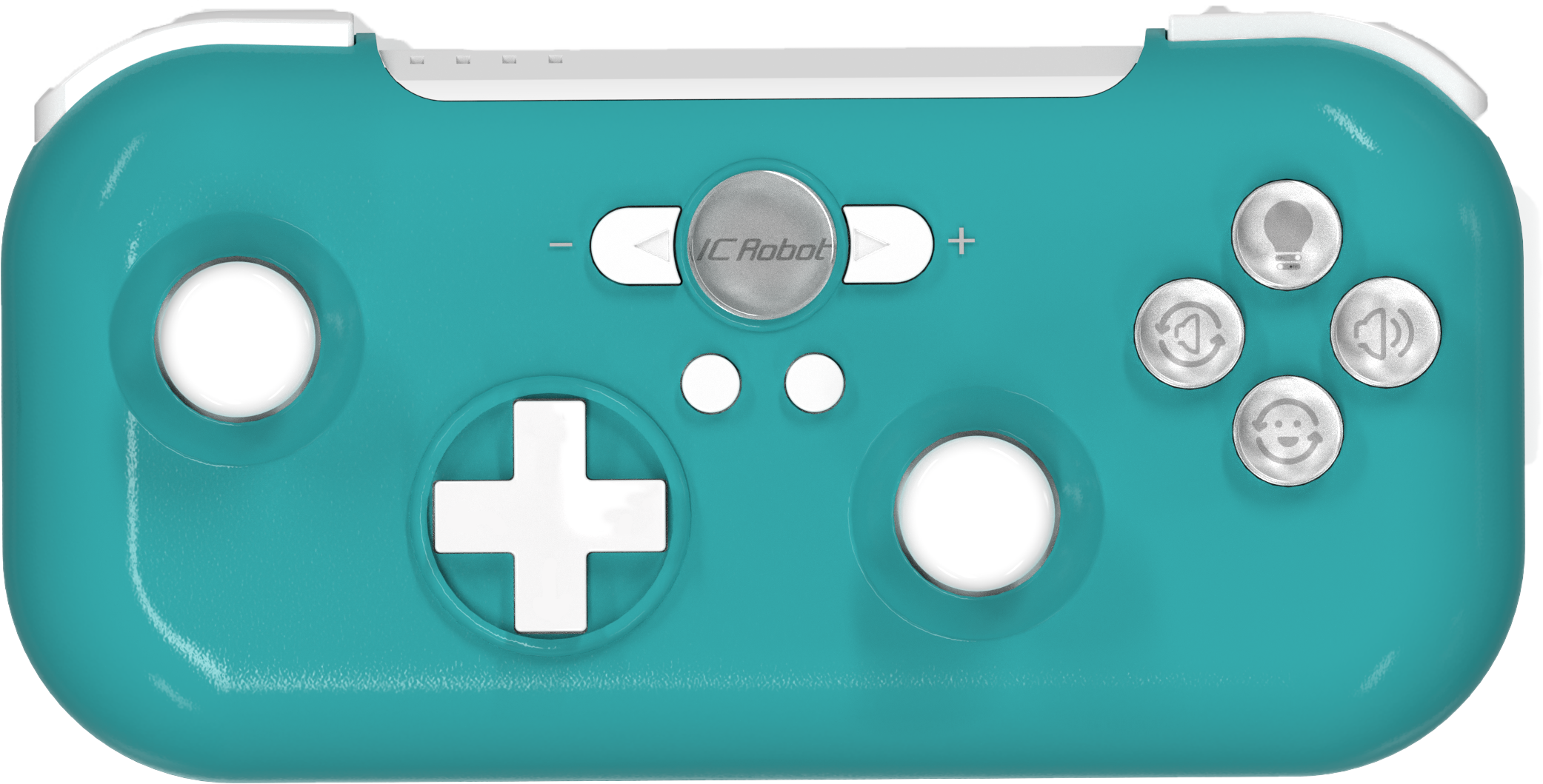
KIDZBot Multifunctional Bluetooth Controller × 1 |
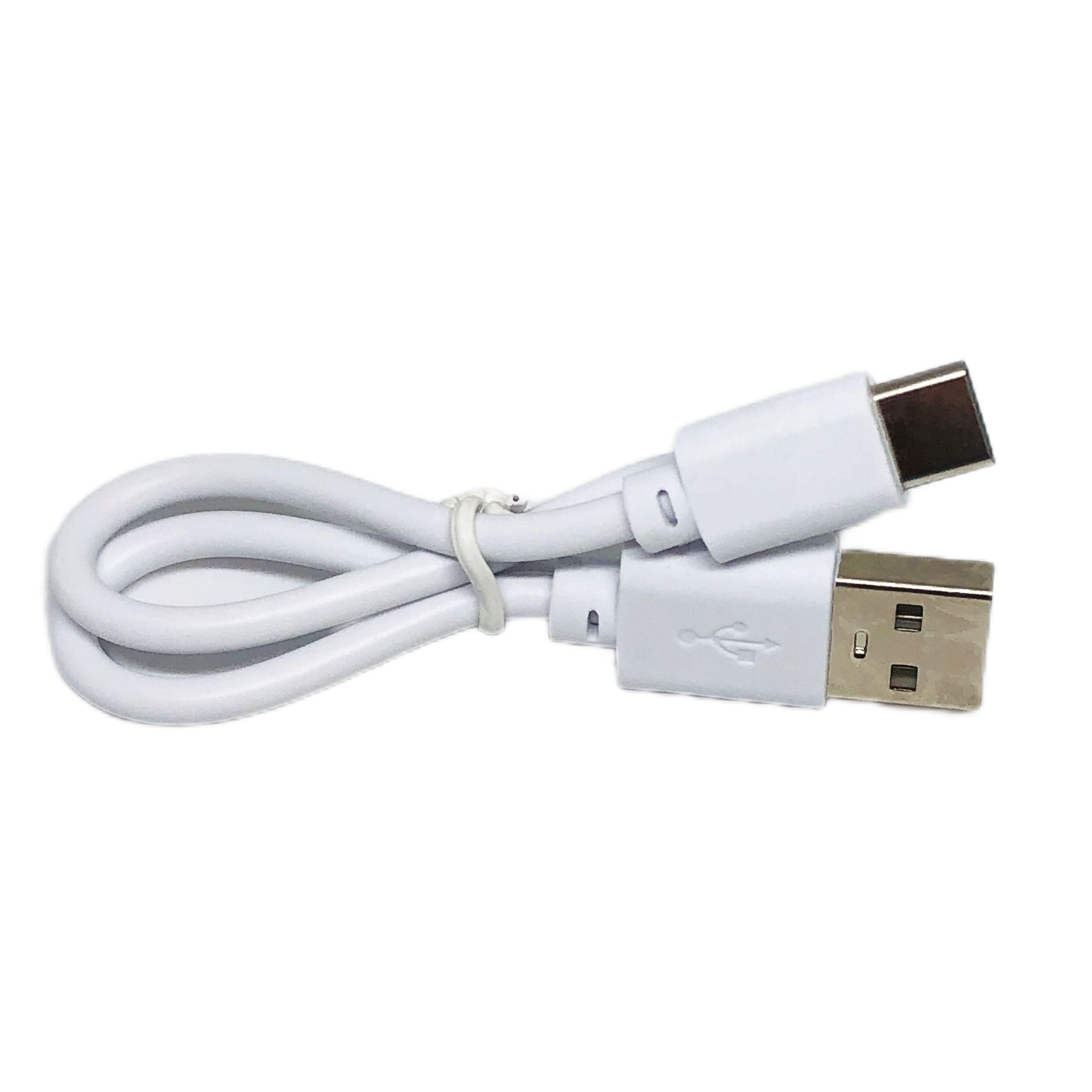
USB-C Data Cable x 1 |
Upgrade Steps
|
|
|---|---|
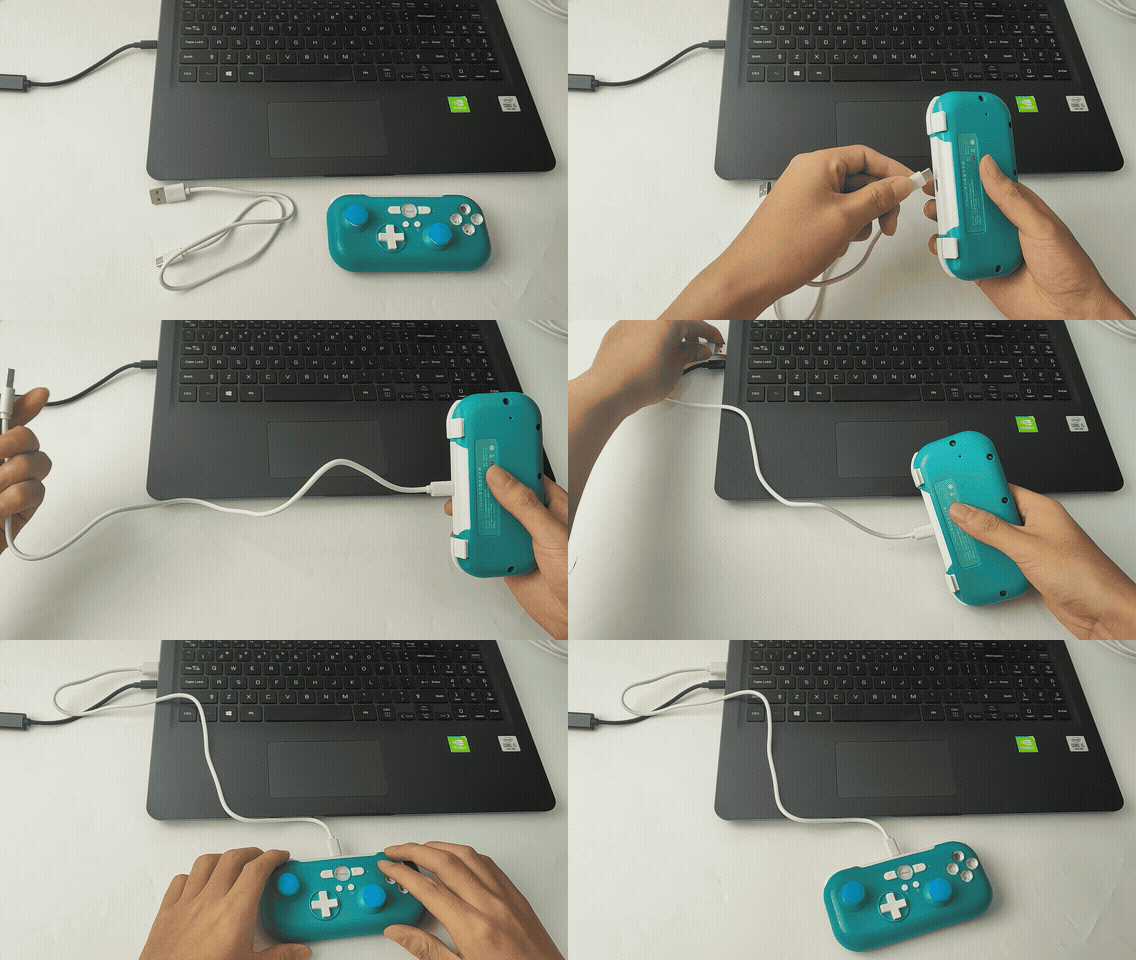
① Connect the KIDZBot Multifunctional Bluetooth Controller to the computer using a USB-C cable. |
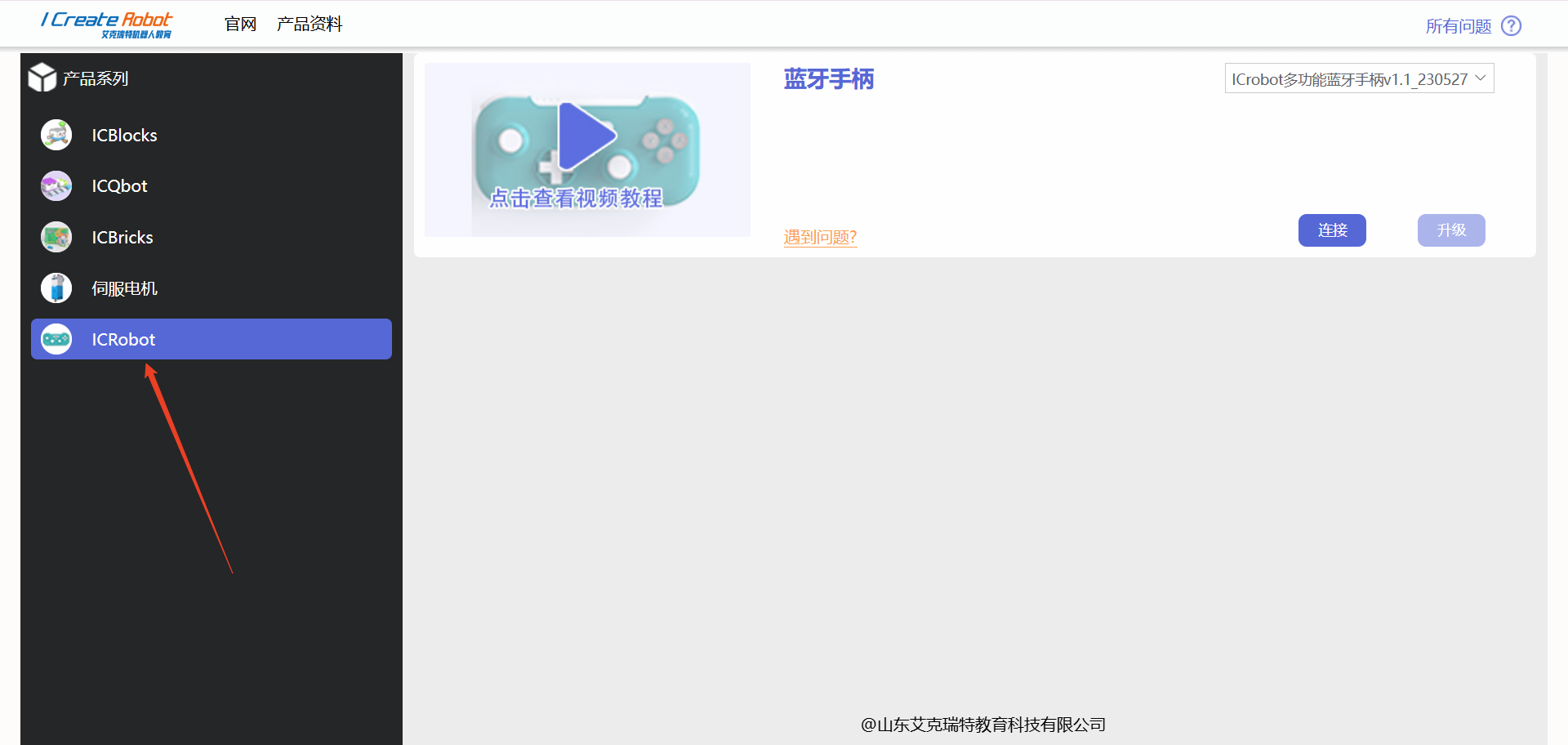
② Open the firmware upgrade platform in Chrome or Microsoft Edge browser, and select the KIDZBot Series on the left side. |
|
|
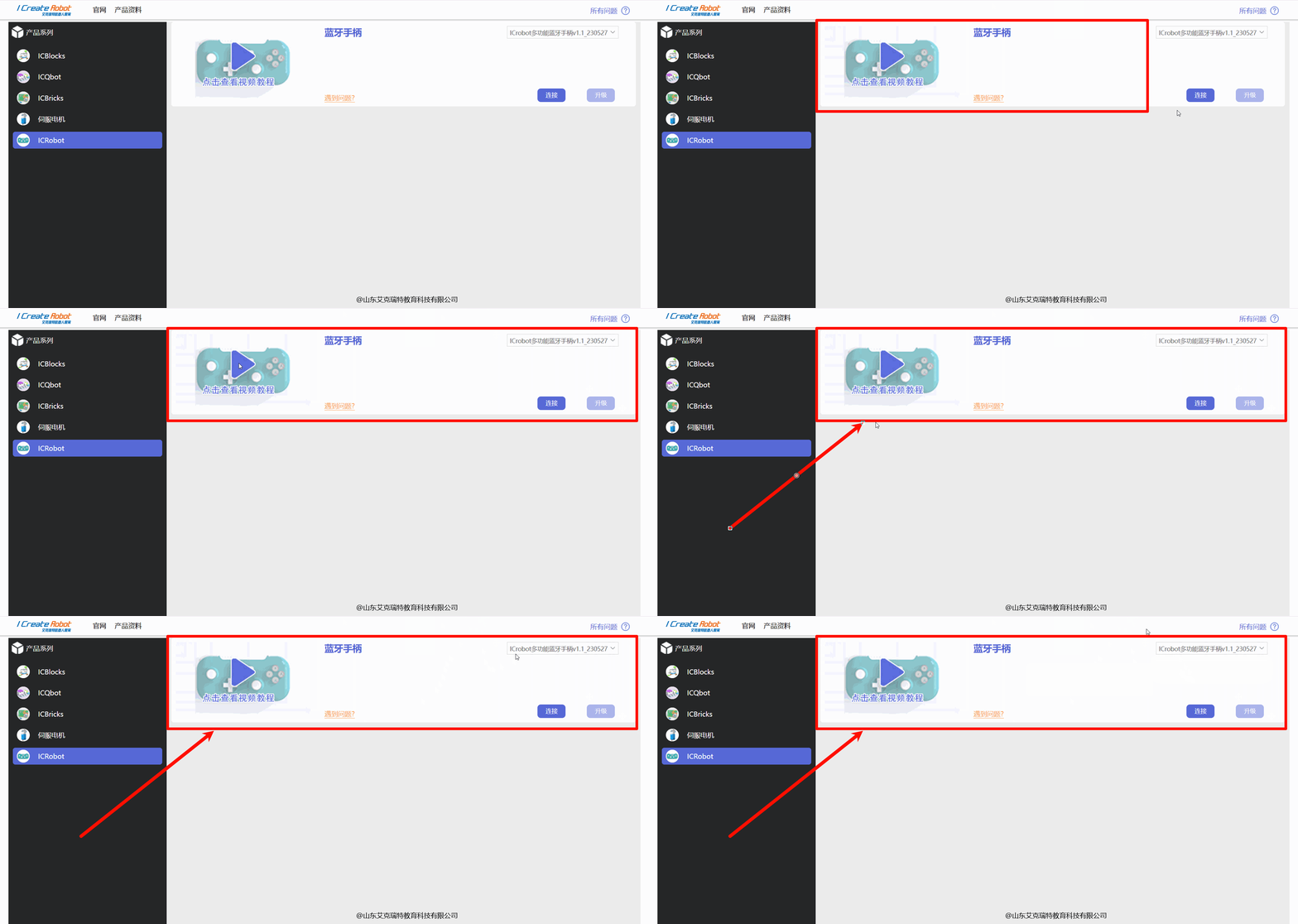
③Locate the Bluetooth Controller on the right side, expand the drop-down menu to view the firmware upgrade options. |
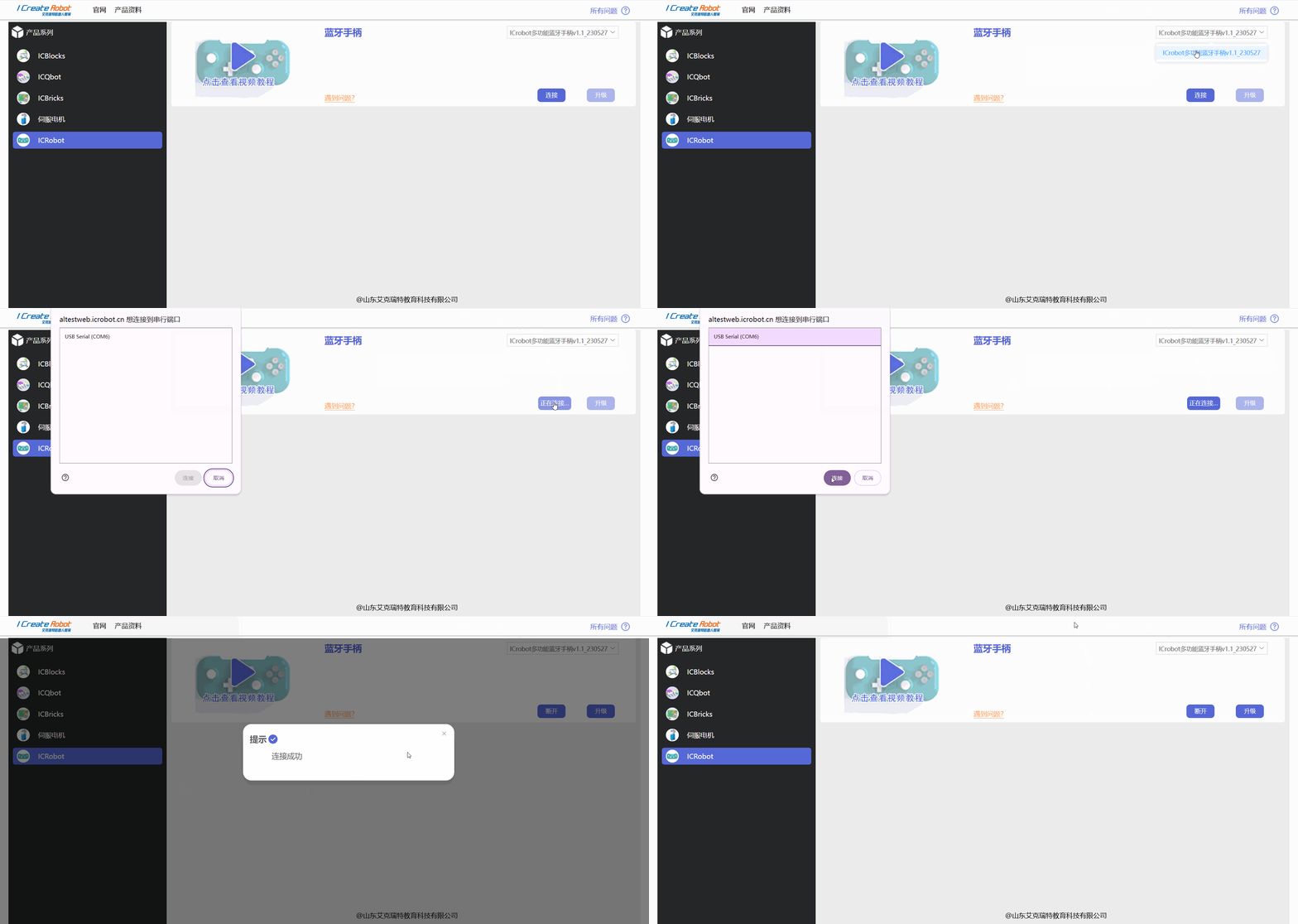
④ Select the firmware version to upgrade, click Connect, select the device’s COM port, and wait for the connection to succeed. |
|
|
⑤ Click Upgrade. Once the page displays “Upgrade Successful,” restart the device to complete the upgrade. |