# Coding Board Firmware Upgrade
## Online Upgrade
### Preparation
1. Software Preparation
2. Upgrade website: [https://update.icrobot.cn/](https://update.icrobot.cn/)
_(Recommended browsers: Chrome or Microsoft Edge)_
3. Hardware Preparation
| 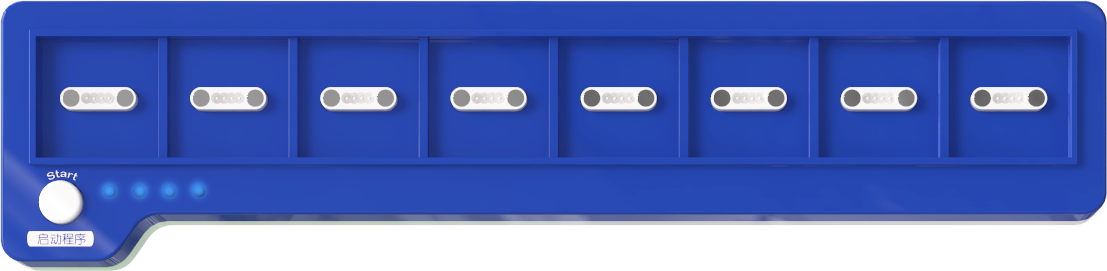 | 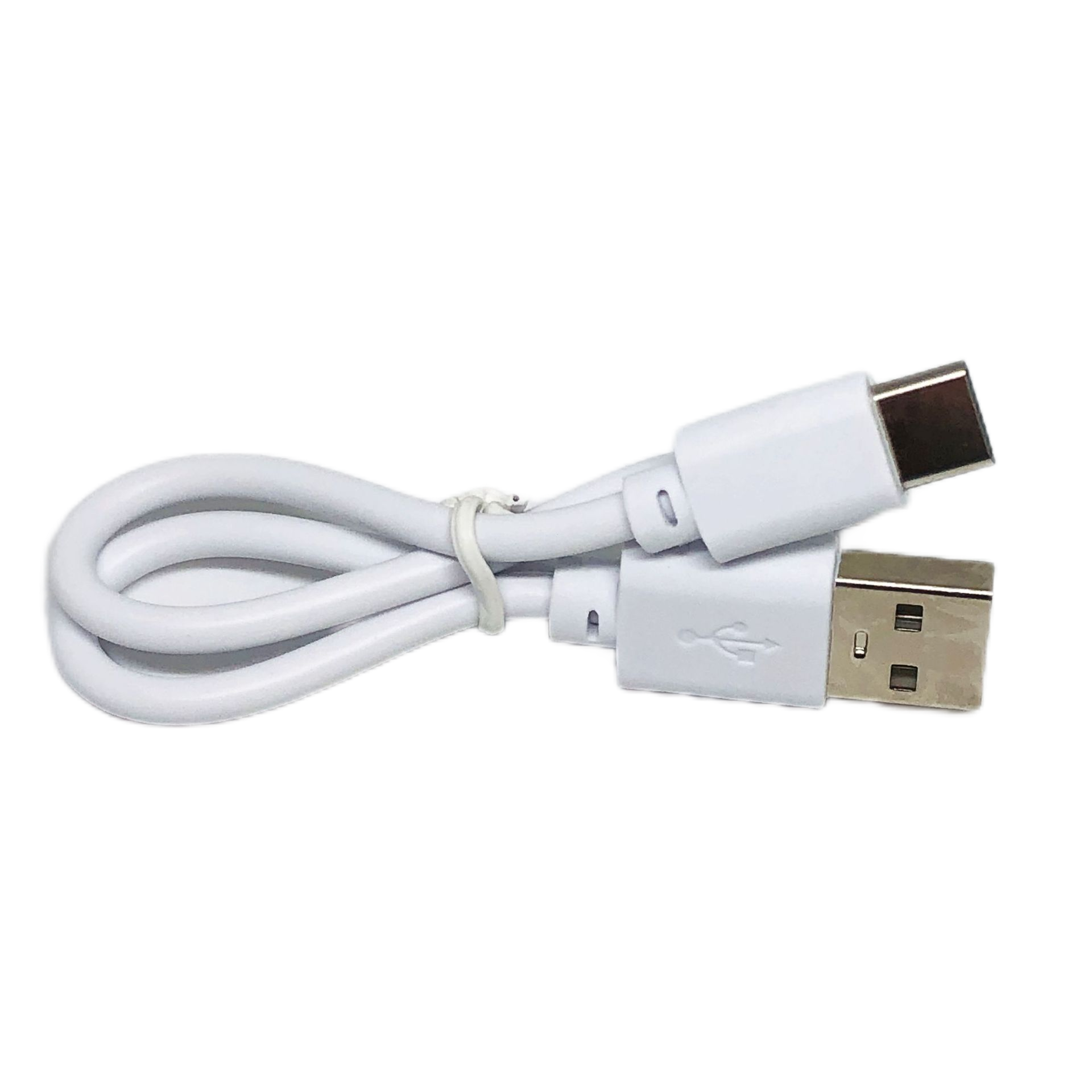 | 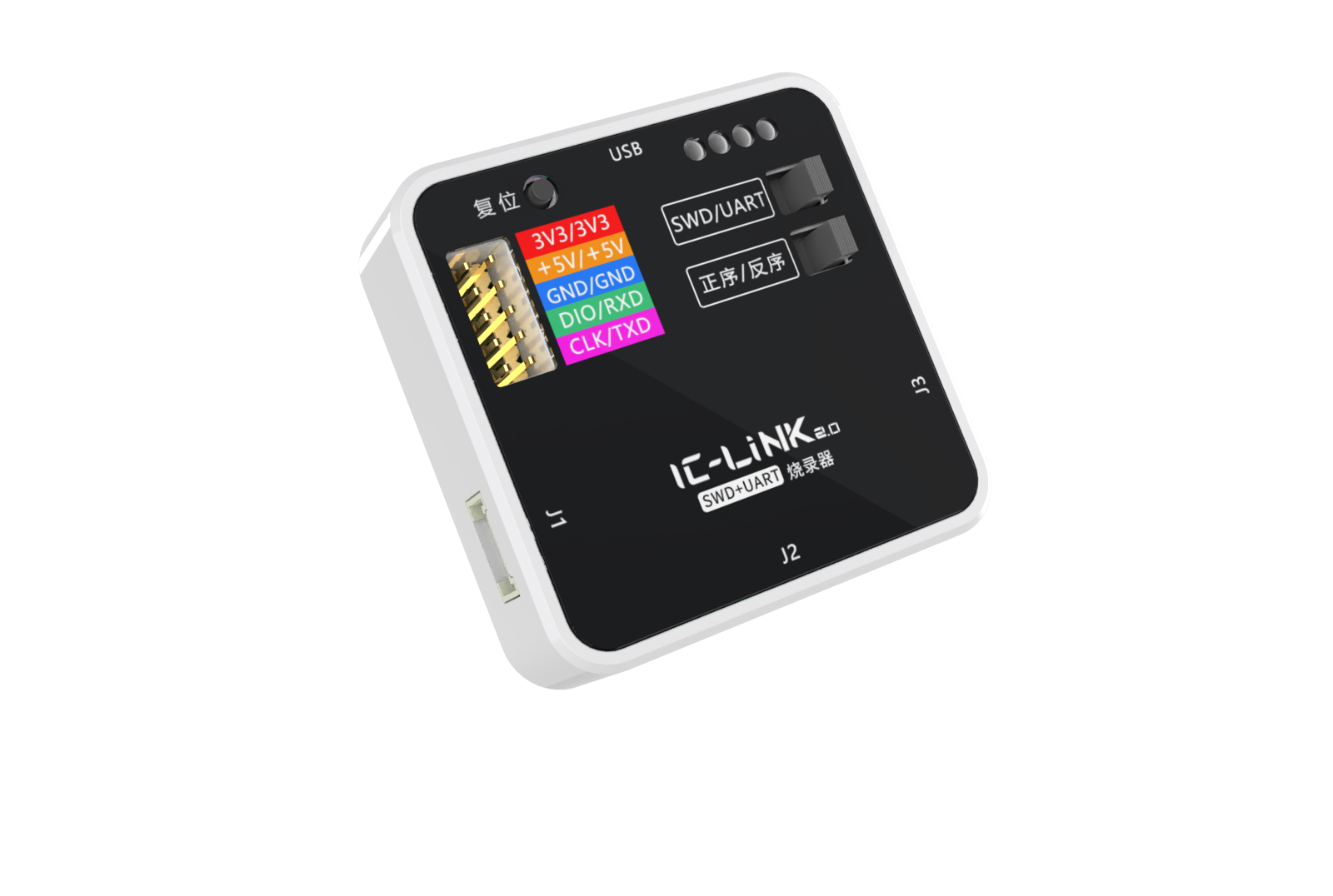 |
| :---: | :---: | --- |
| KIDZBlocks Coding Board x1 | USB-C Data Cables x2 | KIDZLink 2.0 Upgrade Tool x1 |
### Upgrade Steps
|  |  |
| --- | --- |
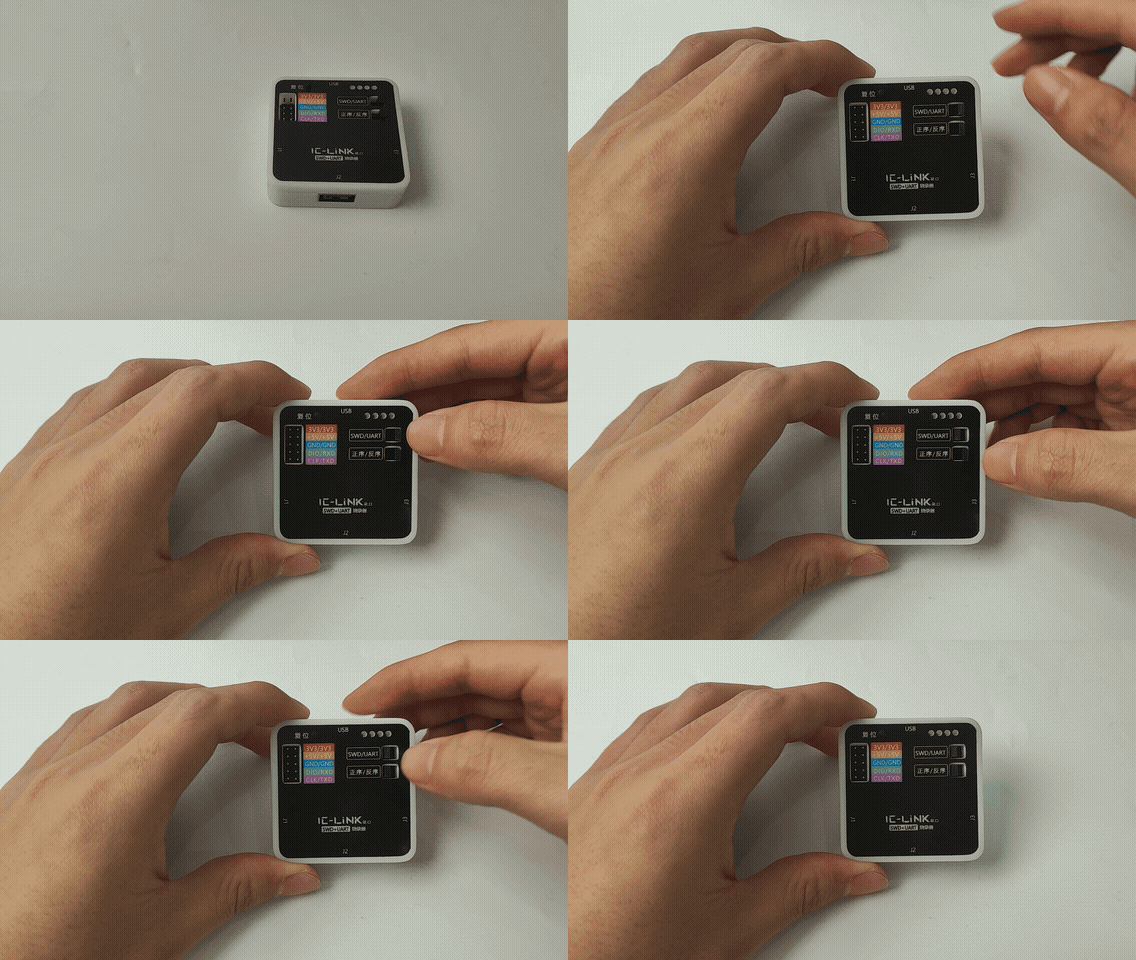
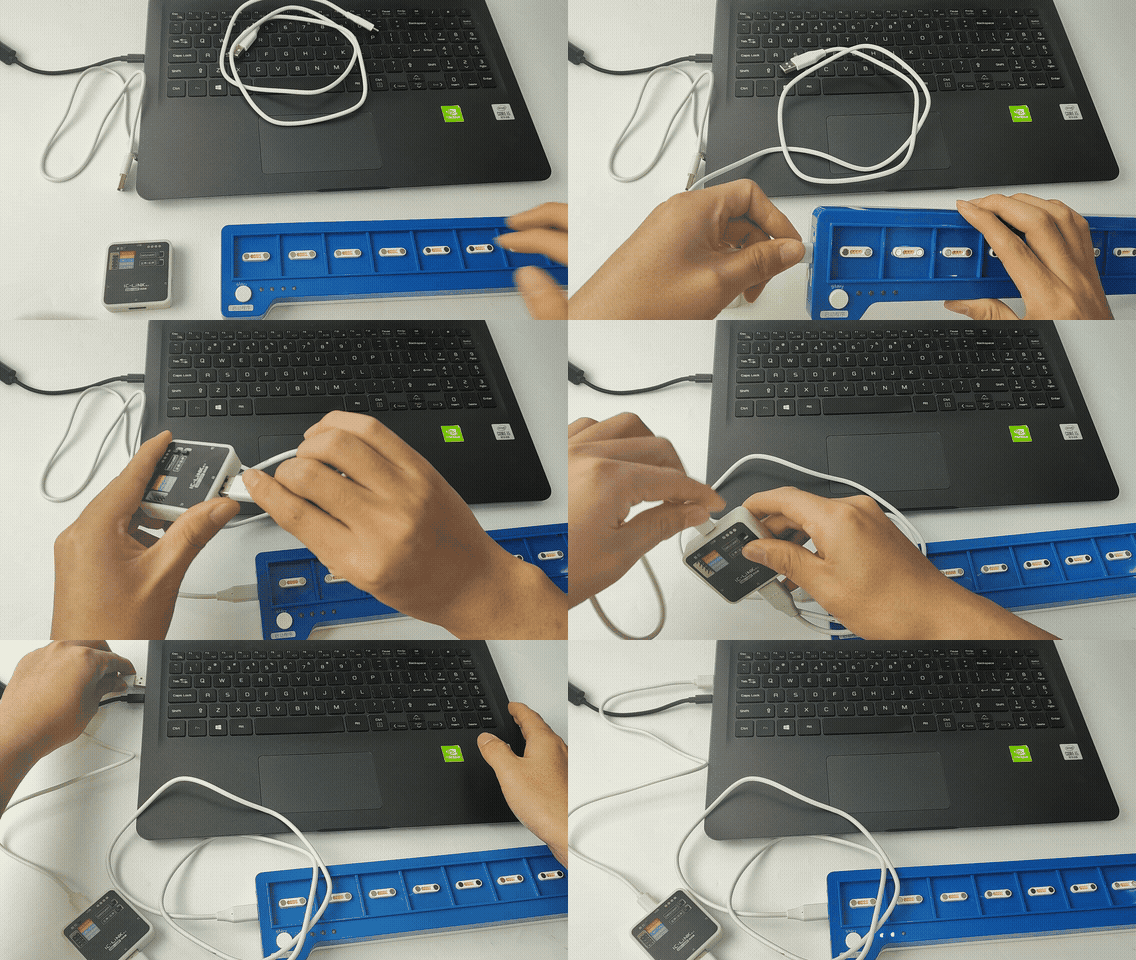
| ① Toggle the switch on the **KIDZLink 2.0** to the **SWD/Forward** position. | ② Connect the KIDZLink 2.0 to the KIDZBlocks coding board using one USB-C cable, then connect the KIDZLink 2.0 to your PC via USB using the second USB-C cable. |
| 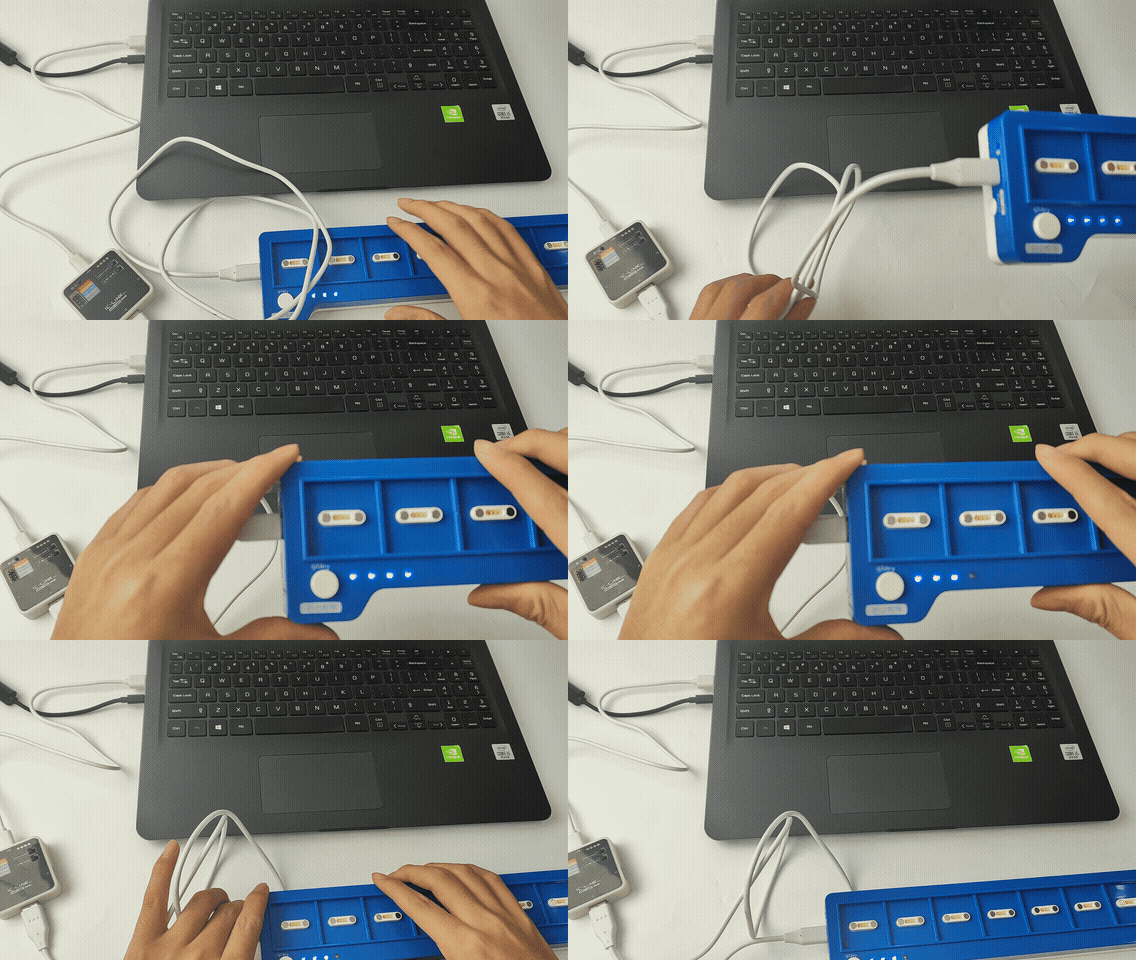 | 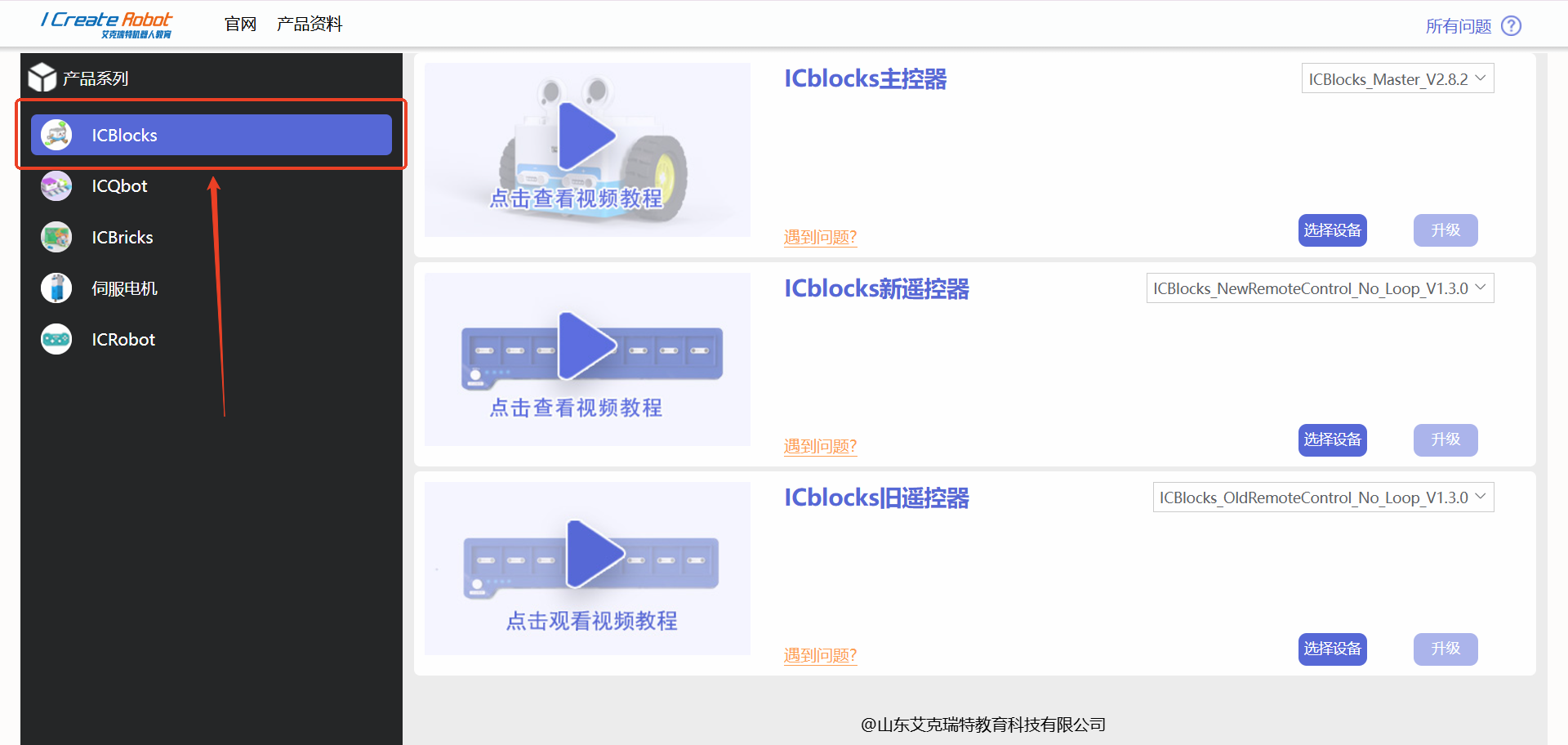 |
| ③ Once connected, the coding board's indicator light will show a charging status. | ④ Open the firmware upgrade platform in **Chrome** or **Microsoft Edge**, and select the **KIDZBlocks Series** from the left panel. |
| 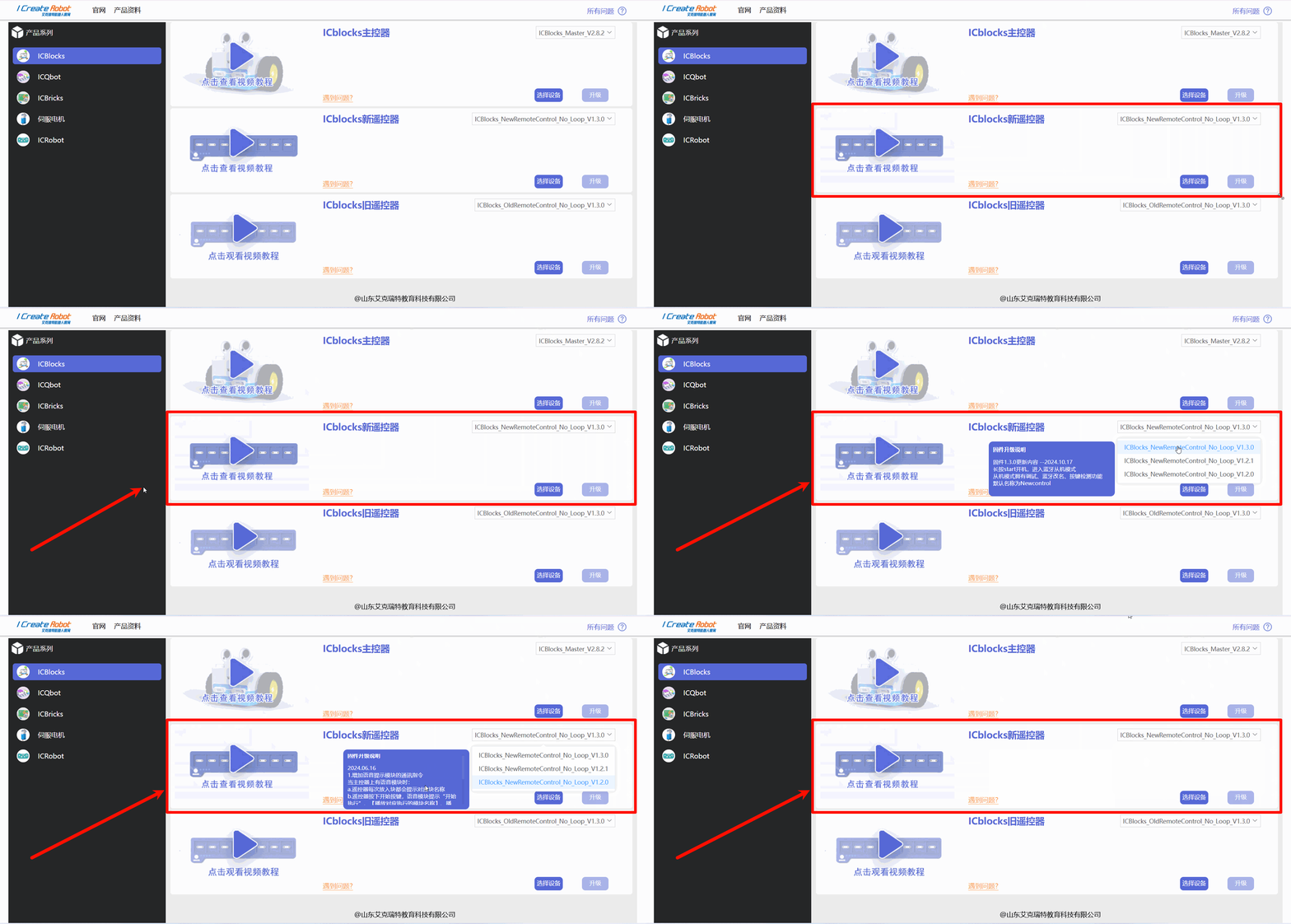 | 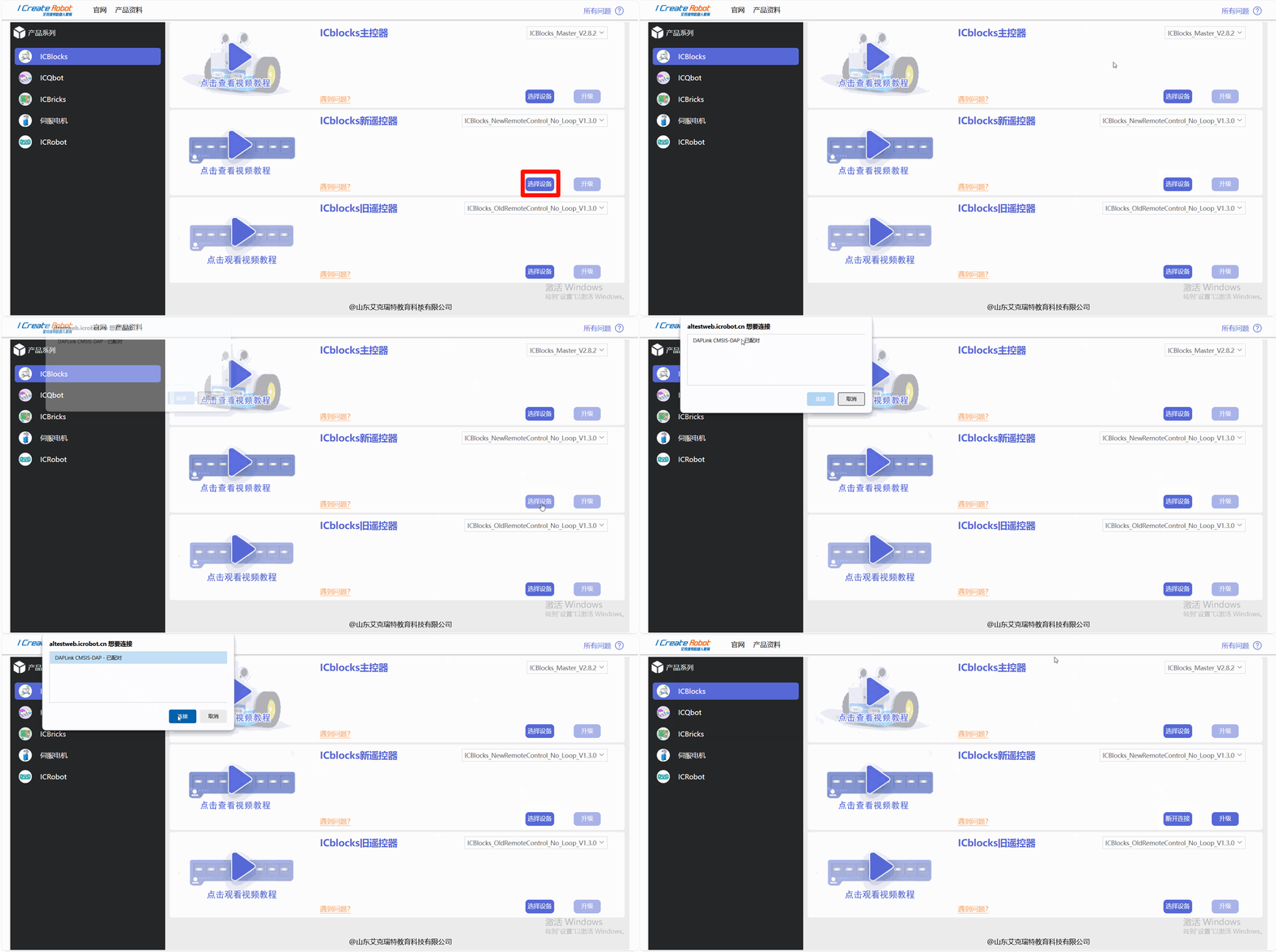 |
| ⑤ Locate the **KIDZBlocks Coding Board** on the right panel. Expand the dropdown list to view available firmware upgrades. | ⑥ Choose the desired firmware version and click **Upgrade.** |
| 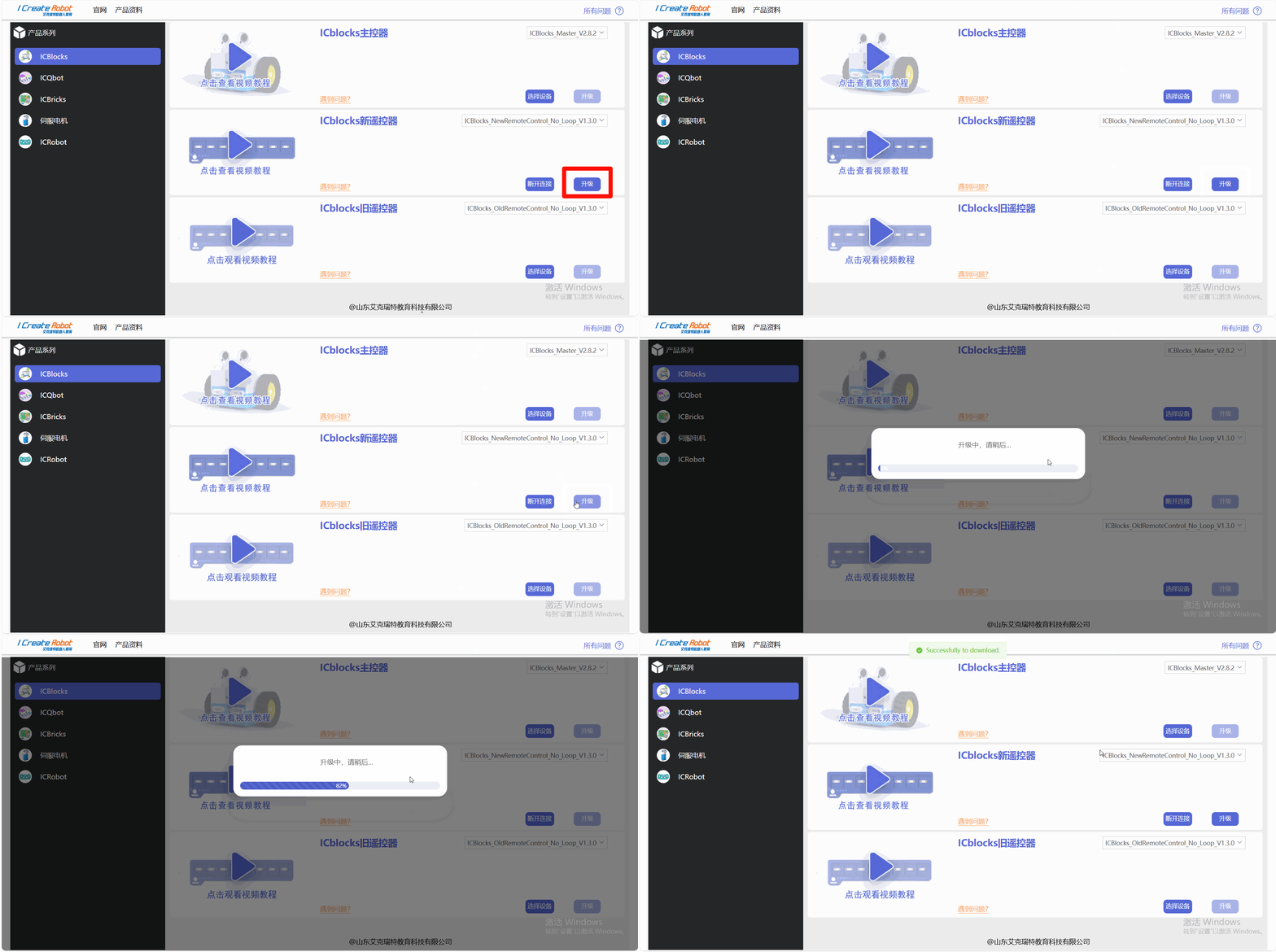 | 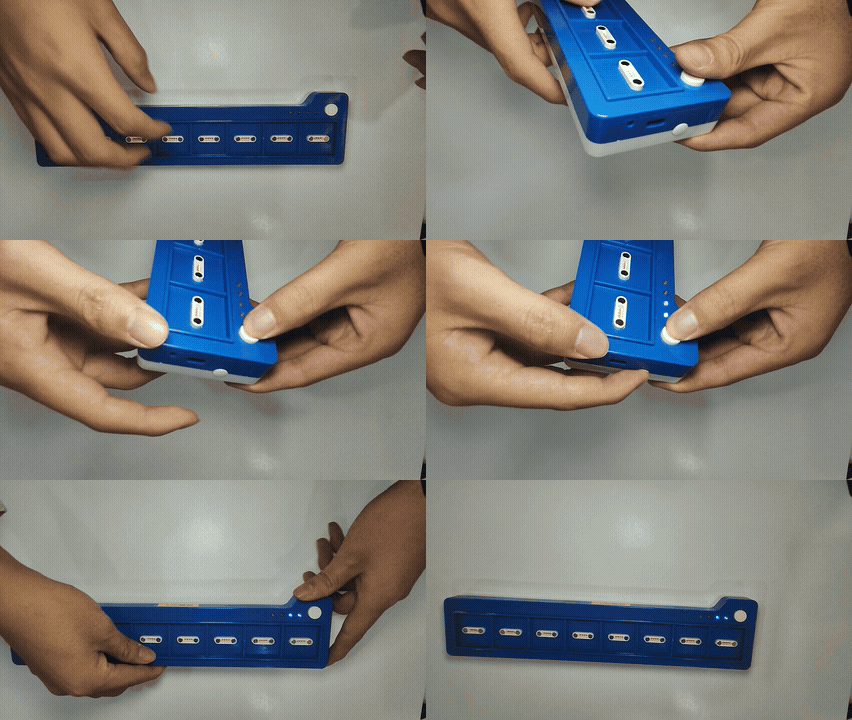 |
| ⑦ Wait for the page to display **"Upgrade Successful."** Observe the blue indicator light on the KIDZLink 2.0 for confirmation of completion. | ⑧ Power on the upgraded coding board by pressing the **Start** and **Power** buttons. |
| 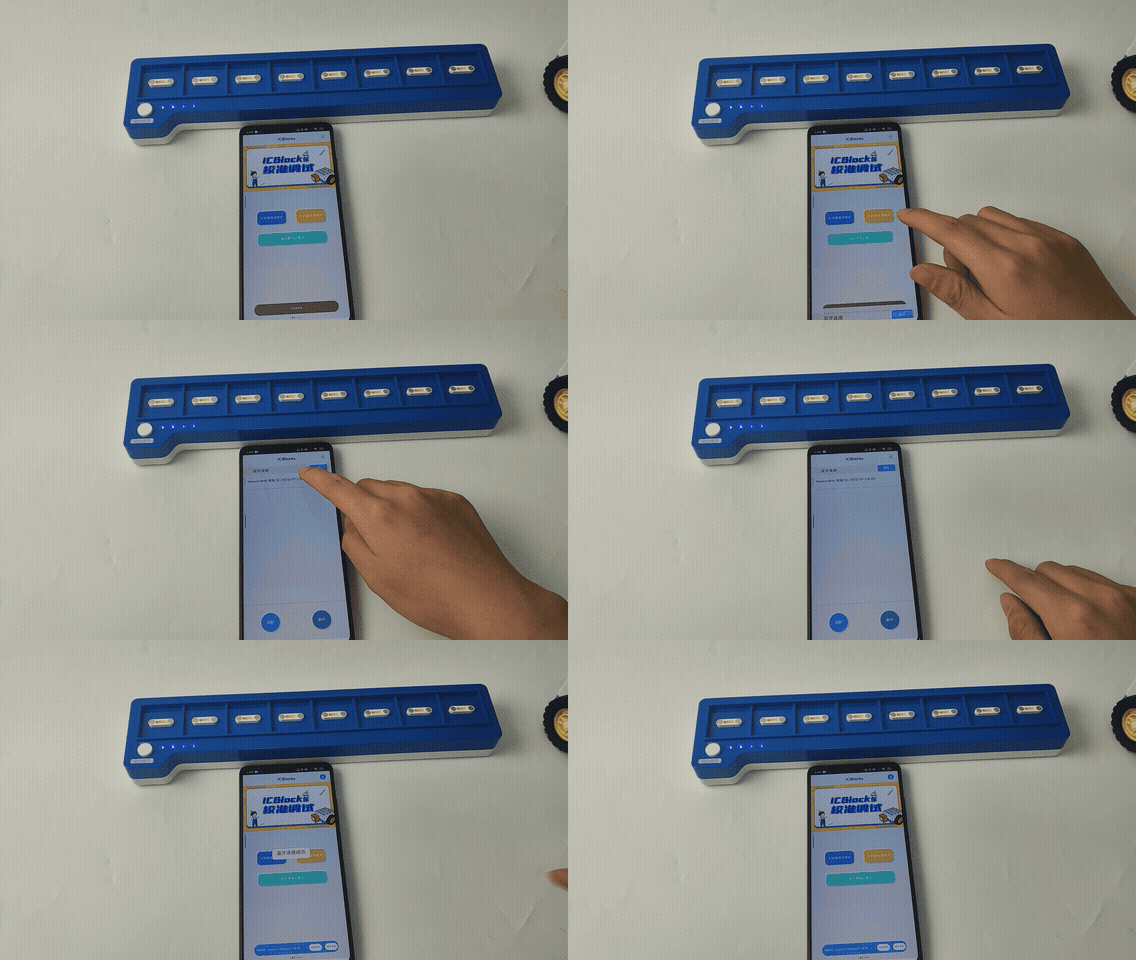 | 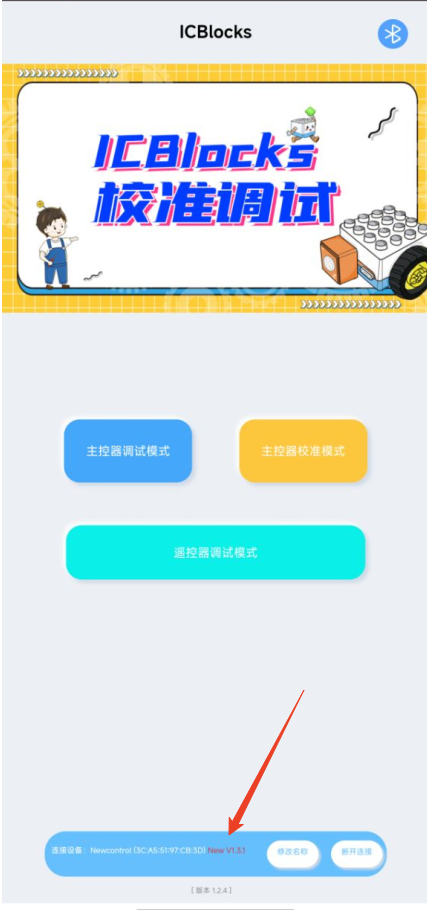 |
| ⑨ Connect the Coding Board to the KIDZBlocks Calibration and Debugging Tool. | ⑩ On the **Home Interface** of the software, check the **device connection status** at the bottom to verify the firmware version. Firmware versions below **1.3.1** do
not support software version checking. |